Getting started
Build a rundown, put the clock on a screen, share it, and keep the show honest when it runs late.
On this page
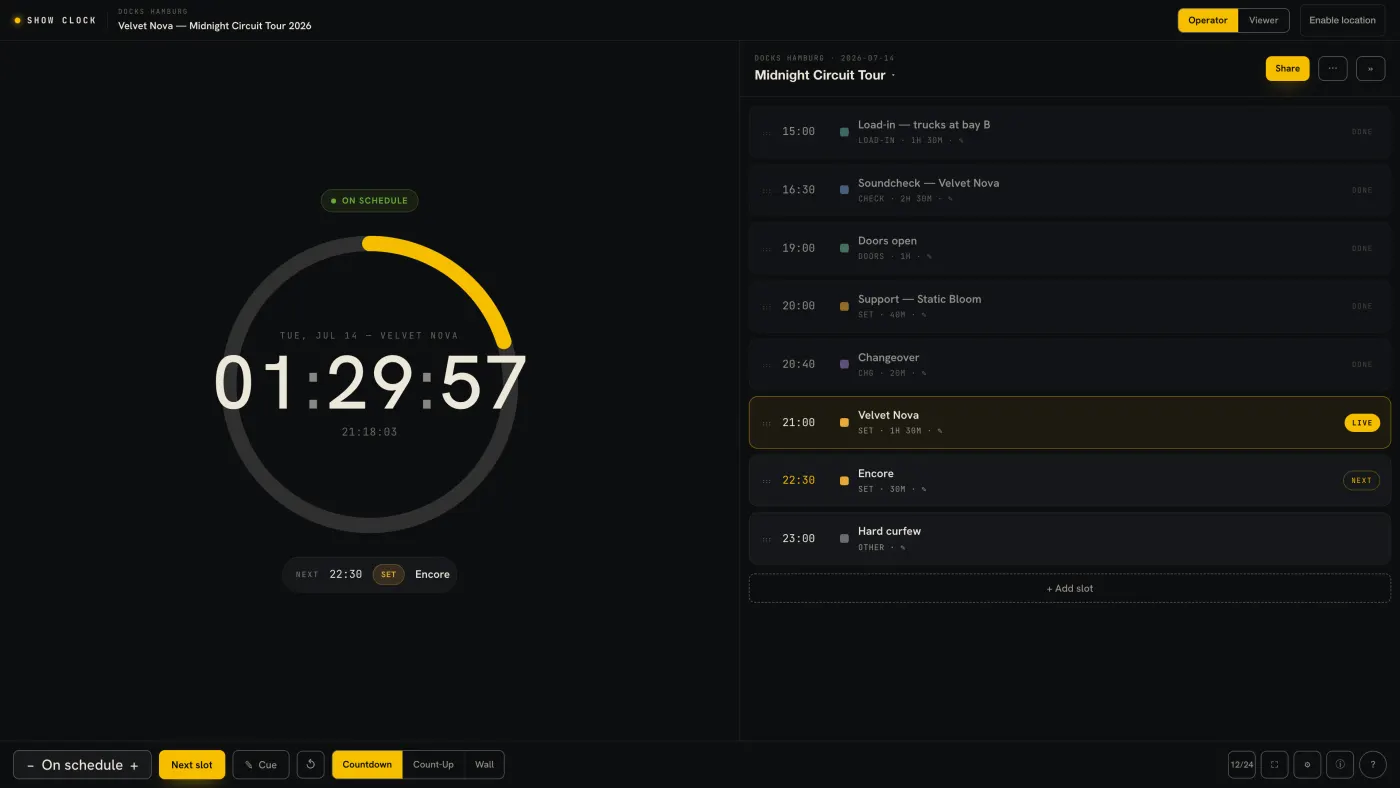
Show Clock runs your running order — the list of everything that happens and when. It shows a big countdown clock for the room, keeps your whole crew on the same time, and lets the audience or band follow along on their own phones through a share link. Everything you build is saved automatically, and if you are signed in it syncs to your other devices.
Quick start
- Open Show Clock from the dashboard, or tap Open Show Clock in the sidebar.
- Build your rundown — add slots (Doors, Set 1, Changeover, Curfew…), each with a start time. You can also import a list instead of typing.
- Leave the clock in Wall Clock mode. It follows real time and highlights the slot you are in.
- When you want the room, band or FOH to follow along, tap Share and send them the link or QR code.
- During the show, tap Next slot to advance, and use the offset buttons if you are running behind or ahead — everyone's times update live.
The operator screen
The workspace has two main areas. On a tablet or computer they sit side by side; on a phone you switch between them with the tabs at the bottom.
- Clock — the big display: a wall clock, a countdown ring to the next slot, and a status pill (
ON TIME,RUNNING LATE…). Put this on a projector or spare monitor. - Running Order — the editable list of every slot in time order, with drag handles, live / next / done badges, and inline editing.
- Operator / Viewer — on tablet and desktop, flip to Viewer to preview exactly what someone on your share link is seeing right now.
Clock modes
Use the mode toggle (or press M to cycle) to choose how the clock behaves:
| Mode | What it does | Best for |
|---|---|---|
| Wall Clock (default) | Shows real time; the active slot changes as real time crosses each slot's start. | Schedule-driven shows |
| Count-Up | Counts elapsed time since the current slot began. | "How long have we been in this?" |
| Countdown | Counts down the time left in the current slot (needs a duration); can alert and auto-advance at zero. | Timed segments, strict changeovers |
Building your rundown
Each entry is a slot with a start time, a type (Doors, Soundcheck, Set, Changeover, Break, Curfew, Load-out, Other…), a label, and optional notes, duration and an attachment.
- Add a slot — use the add button at the bottom of the Running Order.
- Edit a slot — tap a row to expand it inline; "More options" reveals duration, day, clock mode, per-slot offset and artwork.
- Reorder — drag the grip (
⋮⋮). Reordering keeps your set of times and rotates which slot lands on which time, so the schedule stays intact. - Multiple rundowns — keep several named timetables (for example one per festival day) and switch between them.
Import & export
You do not have to type everything in. Show Clock imports and exports
CSV, JSON, and plain-text HH:MM Label lines, exports to
iCal, and prints or saves the running order to PDF.
Paste schedule — the text format
Import → Paste schedule takes one line per slot: HH:MM Label. That is
enough for a quick rundown — the slot type is read from words in the
label (Doors, Soundcheck, Line check, Changeover/Umbau, Break/Pause, Curfew,
Load-in, Load-out), everything else becomes a Set. To set a slot
precisely, add #tags anywhere in the line; a tag always beats the guessed
type.
15:00 Load-in
17:00 Soundcheck #countdown 45m
19:00 Doors
20:00 Support Act #set #countup
20:45 Umbau #changeover #countdown
21:00 Headliner #set #countdown 90m #alert
23:00 Curfew // hard out, no encore
- Type —
#set#doors#soundcheck#linecheck#changeover#break#curfew#loadin#loadout#other. - Countdown —
#countdown 15mcounts down for 15 minutes from the slot start.#countdownon its own counts down to the next line's time, so a changeover automatically gets the gap until the headliner. - Count-up —
#countupcounts up from the slot start (open-ended);#countup 45malso records the planned length. - Wall clock — the default;
#clockforces it. - Durations —
45m,1h30,45:00,1:30:00; a bare number means minutes. - Flags —
#alertflashes the clock when the slot ends;#noadvancekeeps the clock on the slot until you end it by hand. - Notes — everything after
//lands in the slot's notes. - Times — 24-hour, or
7:00 PM; leave "All times are PM" ticked for a typical evening schedule so7:00becomes 19:00. - From a spreadsheet — copy the cells and paste; tab-separated columns are read as
Time | LabelorTime | Type | Label | Notes | Mode | Duration | Alert | Auto-advance. Type and mode accept the same words as the tags (Break,changeover,count-up…).
Pasting replaces the current rundown (you are asked first when it is not empty); undo brings the old one back.
Show details
Set your show title, stage/venue name and show date (used for multi-day labels). Optionally set a location (GPS or manual coordinates) to get a sunset time and weather readout in the top bar.
Running the show
- Next slot — the main button; advances to the next entry. Keys: Space, N or →.
- Cue — send a short text message to everyone on the share link; it flashes as a banner on their screen. Good for "5 min to doors" or "hold".
- Alerts & auto-advance — in Countdown mode, when a slot with a duration runs out it can play a tone, flash an alert and jump to the next slot. Dismiss an alert with D or Esc.
- Fullscreen — press F to hand a clean clock to a projector.
Running late or early — the offset
This is the feature that keeps a real show honest. When you are behind (or ahead) of schedule, you do not re-type every time — you apply an offset and every upcoming time shifts at once, for you and for everyone watching your share link.
- + → running 1 minute later (behind). Shift++ → +5 min.
- − → running 1 minute earlier (ahead). Shift+− → −5 min.
- The centre button (or R / 0) resets the offset back to on time.
- Keyboard: ↑ = +1 min, ↓ = −1 min.
The status pill reads for example RUNNING 4 MIN LATE, every projected
start time in your running order shifts by the offset (you still see the
original planned time in faint text), and everyone on the share link
sees the shifted times too, within a few seconds — no need to re-share.
The offset is remembered across reloads and syncs to your other devices.
Themes, install & shortcuts
Toggle between Dark (default), Light and High-contrast with the theme button. On phone or tablet you can install Show Clock to the home screen (Add to Home Screen) — it then launches fullscreen and works offline like a native app.
| Key | Action |
|---|---|
| Space · N · → | Next slot |
| ↑ / ↓ | Offset +1 min / −1 min (run later / earlier) |
| + / − | Offset +1 / −1 min (Shift = ±5 min) |
| R · 0 | Reset offset to on-time |
| M | Cycle clock mode |
| T | Toggle the running-order panel |
| F | Fullscreen |
| D · Esc | Dismiss an alert |
| ? | Show the shortcuts overlay |
| Ctrl/⌘+Z | Undo (add Shift to redo) |
R resets the running-late/early offset, not the count-up/countdown timer. The timer reset stays on the HUD's ↺ button.
Next
- Sharing — links, QR codes, snapshots and what the audience sees.
- Multiple devices & accounts — syncing your own devices vs. sharing to others.
- Working offline — what keeps running when the Wi-Fi drops.
Thanks for the feedback.