Getting started
Tap the tempo, start the metronome with a count-in, set the time signature and read the delay table — in five minutes.
On this page
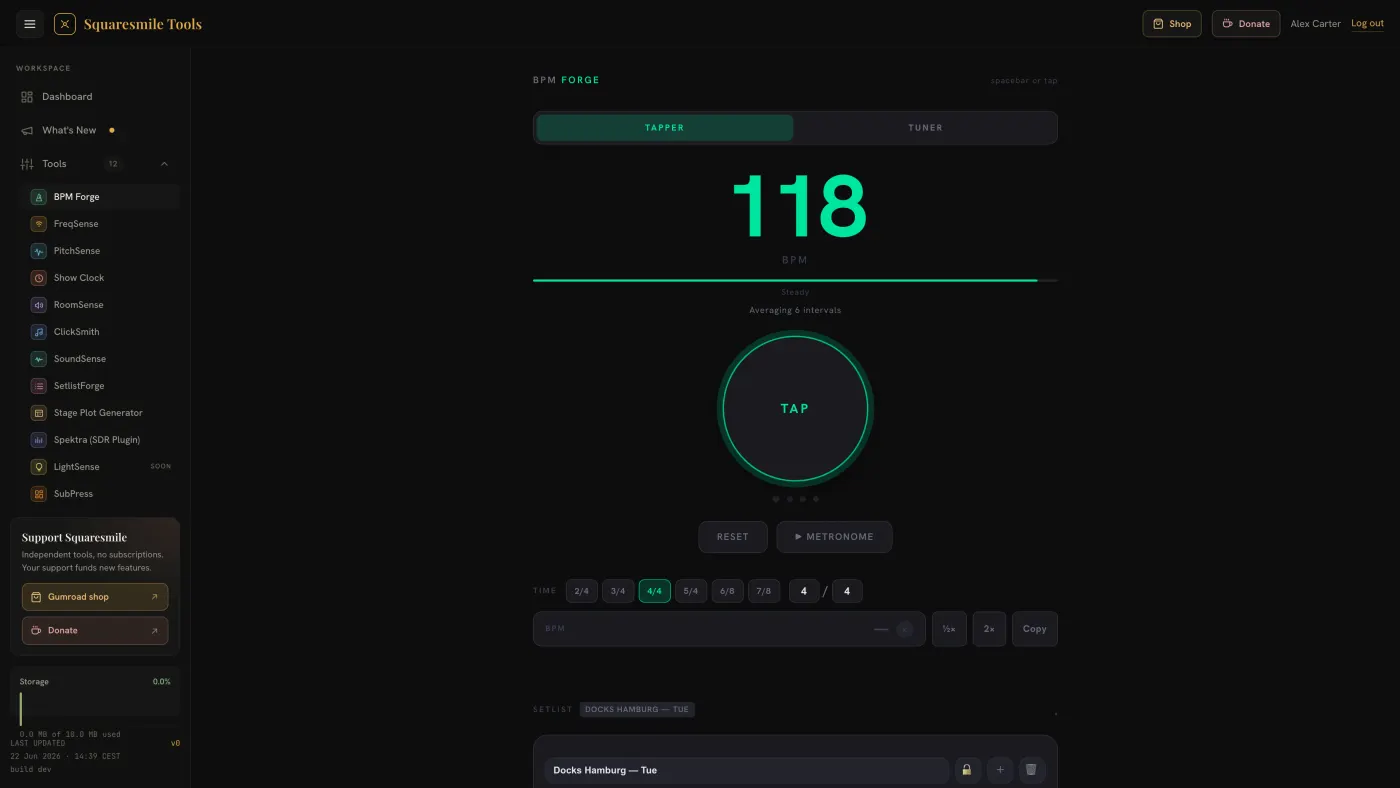
BPM Forge has two tabs: Tapper (tap tempo, metronome, setlist and delay calculator) and Tuner. This page covers the Tapper; the tuner has its own page.
Quick start
- Open BPM Forge from the dashboard. You land on the Tapper tab.
- Tap the big TAP button in time with the music, or press Space. The BPM appears after a few taps and the label under it reads Steady, OK or Unsteady depending on how even your taps were.
- Pick the Time signature — 2/4, 3/4, 4/4, 5/4, 6/8 or 7/8 — or type your own beats and note value in the two small fields.
- Press ▶ Metronome. It clicks at the tapped tempo with beat 1 accented; the dots under the button light up on each beat.
- Open Delay Calculator at the bottom to read delay times in milliseconds for that tempo.
Reset clears the taps and starts again.
Setting the tempo by hand
Type a number into the BPM field (20–300) instead of tapping. Next to it, ½× and 2× halve or double the current tempo and Copy puts the value on the clipboard. Previous BPMs lists your recent tempos; tap one to recall it.
Opening /app/bpm-forge?bpm=124 fills the BPM field on load — that is what
TempoSense's Send to BPM Forge uses.
Time signature
The top number sets beats per bar and which beat is accented; the bottom
number sets the note value that drives the click — a /8 signature
clicks twice as fast as /4. The custom fields accept 1–32 for both and
deselect the preset pills unless the values match one.
Count-in
Under the setlist, Count-in sets Off, 1, 2 or 4 bars. Starting a song from the setlist counts you in for that many bars before the metronome runs — see Keep a setlist of tempos.
Settings
The Settings panel folds out below the setlist:
- Click sound — Beep, Woodblock, Rim, Cowbell, Tick or Custom. For Custom, upload a sound for All beats and optionally a separate one for Beat 1; without it beat 1 uses the All-beats sound, louder. Each file is at most 3 seconds.
- Tap smoothing — Instant follows your last taps, Average and Weighted smooth them.
- Round BPM to integer — no decimals.
- BPM range lock — set Min and Max so an off-tap cannot throw the reading out of range.
- Haptic feedback (mobile) — a small vibration on each beat on phones that support it.
Good to know
- Pressing Space inside a text field types a space; it only taps when nothing is focused.
- Switching to the Tuner tab stops the metronome so its clicks do not leak into the microphone.
- ← / → move between the tabs when the tab bar has focus.
- When you are signed in, your setlists, settings and tuner preferences follow your account to your other devices — see Account sync.
Next
- Keep a setlist of tempos — the band's tempos, locked for the show.
- Read delay times for a tempo — what the Base, ÷ 4 and ÷ 8 columns mean.
- Tune an instrument — instrument presets, custom tunings, strobe view.
Thanks for the feedback.